
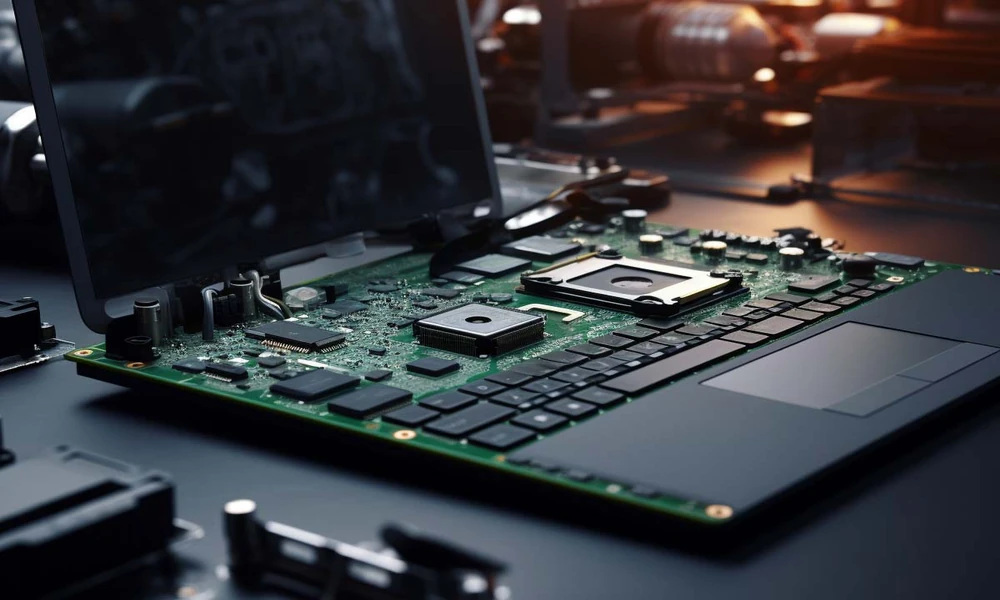
Maintaining a high-performance computer system is crucial for every user. Understanding the difference between software and hardware is essential in achieving this goal. Many users mistakenly believe that every problem stems from software. This misconception can lead to unnecessary frustration and wasted time.
According to Martin Walker’s analysis published in June 2002, a significant number of users overlook the role of hardware in their computer’s performance. Recognising the signs of hardware faults is the first step towards ensuring your system runs smoothly. This guide aims to provide a comprehensive approach to identifying common faults that may hinder your daily tasks.
By following the professional steps outlined here, users can effectively diagnose and resolve complex hardware challenges. Proper maintenance not only enhances performance but also helps avoid unexpected crashes or slow application responses.
Key Takeaways
- Understanding hardware is vital for optimal computer performance.
- Many users wrongly attribute problems to software.
- Identifying hardware faults can improve system reliability.
- Effective maintenance prevents unexpected system issues.
- Following professional guidelines aids in troubleshooting.
Introduction to PC Hardware Troubleshooting
A reliable computer is essential for users seeking optimal performance. Troubleshooting requires a methodical approach to differentiate between minor software glitches and significant underlying hardware problems.
Martin Walker observed that many users waste valuable time debugging software when the real issue could be a poorly seated PCI card or a loose cable. This common oversight can lead to unnecessary frustration.
A professional approach involves isolating components to identify whether the problem lies within the computer or its peripherals. Early identification of hardware problems can prevent further damage to sensitive internal components like the motherboard or processor.
This section introduces fundamental concepts necessary for diagnosing common faults without resorting to unnecessary component replacements or costly repairs.
| Common Problems | Potential Causes | Recommended Actions |
|---|---|---|
| System Crashes | Poorly seated components | Reseat all cards and cables |
| Slow Performance | Overheating | Check cooling systems |
| No Audio Output | Faulty connections | Inspect audio cables |
Understanding the Common Causes of Hardware Problems
Understanding the inner workings of a computer is vital for ensuring its efficiency. Distinguishing between software bugs and hardware faults is essential. Viruses can create symptoms such as disappearing partitions or system slowdowns, leading to confusion.
Overheating is a frequent cause of spontaneous reboots. This is particularly true for high-performance Athlon processors, which often require upgraded heatsinks. Efficient cooling fans are crucial to prevent issues during intensive operation.
A failing power supply unit can also lead to random reboots. If the voltage sags under heavy load conditions, the computer may reboot unexpectedly. Recognising the signs of a failing power supply is crucial, as it can result in intermittent problems that are challenging to diagnose.
Lastly, software-based anti-piracy protection can sometimes mimic hardware problems. This may lead users to believe there is a physical issue with their computer when it is not the case.
| Common Problems | Potential Causes | Recommended Actions |
|---|---|---|
| Random Reboots | Overheating | Upgrade cooling systems |
| System Slowdowns | Software issues | Run virus scans |
| Power Supply Failures | Voltage sagging | Check power supply unit |
Essential Signs of Failing Components
Recognising the early signs of component failure can significantly enhance system longevity. Users should be vigilant for specific indicators that suggest potential problems.
Interpreting BIOS beep codes is crucial. For instance, one long beep followed by two short beeps typically indicates a graphics card failure during the POST process. This can help pinpoint issues quickly.
Utilising the GoldMemory utility is another effective method. It identifies memory errors that could lead to random system crashes or corrupted data. Regular checks can prevent unexpected downtime.
A failing hard drive often shows signs like disappearing partitions or boot failures. Additionally, unusual noises from fans or a lack of expected cooling activity can signal component issues.
If the BIOS detects a memory error, it often signals this through continuous beep codes during the initial boot sequence. Recognising these signs early can save users from extensive repairs.
How-To Guide for Spotting and Fixing PC Hardware Issues
A well-functioning computer system is crucial for users who rely on technology daily. When tackling potential faults, it is essential to install only one upgrade at a time. This approach allows for easier identification of any new problems that may arise.
A systematic inspection process is vital. Users should ensure that all expansion cards are seated firmly in their respective motherboard slots. Regular maintenance, such as dusting the computer case, can help maintain unobstructed airflow for internal components.
Martin Walker recommends keeping detailed notes on every fix attempted. This practice helps avoid repeating steps when diagnosing intermittent problems. Additionally, maintaining a clean environment prevents dust accumulation, which can lead to overheating and premature component failure over time.
| Maintenance Tips | Benefits | Frequency |
|---|---|---|
| Install upgrades one at a time | Isolates potential faults | As needed |
| Check expansion card seating | Ensures stable connections | Monthly |
| Regular dusting | Improves airflow | Every 3 months |
Tools and Utilities for System Diagnostics
Diagnostic tools play a pivotal role in maintaining a computer’s efficiency. Utilising utilities like ScanDisk is essential for identifying physical defects on your hard drive before they lead to data loss.
Modern system diagnostic utilities can monitor CPU temperatures and fan speeds. This ensures your hardware operates within safe parameters, preventing overheating.
Professional technicians often use specialised software to test the integrity of the motherboard and other critical components. Regularly running diagnostic software helps catch potential hardware problems before they escalate into failures or data corruption.
These tools provide detailed reports on the health of your computer, allowing for proactive maintenance rather than reactive repairs.
| Utility | Function | Benefits |
|---|---|---|
| ScanDisk | Checks hard drive surfaces | Identifies defects before data loss |
| CPU Monitor | Tracks CPU temperatures | Prevents overheating |
| Motherboard Tester | Tests motherboard integrity | Ensures system stability |
Overcoming Connectivity and Cable Issues
Properly managing cable connections is essential for maintaining a stable computer system. Ensuring that every internal cable is pushed firmly into its socket can resolve many connectivity problems.
Martin Walker advises that IDE cables should not exceed 18 inches in length. This length helps maintain a high signal-to-noise ratio for drives, preventing potential data transfer errors.
Loose USB connections may lead to intermittent device recognition problems. These issues are often mistaken for a faulty motherboard or operating system error, causing unnecessary troubleshooting.
When assessing cable connections, it is crucial to ensure that the red stripe on the IDE cable aligns with pin one on the motherboard. Additionally, using high-quality 80-way cables for all drives improves reliability by reducing interference between data signals.
Solutions for Soundcard and Multimedia Glitches
Ensuring a seamless audio experience is essential for any computer user. Soundcard glitches often arise from incorrect driver settings or loose physical connections. These issues can lead to frustrating audio problems during playback or recording.
If you are using wireless Bluetooth devices, it is important to keep them within 20ft of the computer. This proximity helps maintain a reliable connection, reducing the likelihood of interruptions.
Mechanical parts, such as 3.5mm jack sockets on a soundcard, can corrode over time. This corrosion may result in intermittent audio signals or unwanted background noise. To troubleshoot, plug headphones directly into the computer. This simple step can help determine whether the issue lies with the soundcard or the external speakers.
Regularly updating soundcard drivers is a proven solution for resolving multimedia glitches. Keeping drivers current ensures optimal performance, allowing users to enjoy a smooth audio experience.
Managing Power Supply and Overheating Challenges
Effective management of power supply units is crucial for maintaining system stability. A 300 Watt power supply is recommended for computers with multiple hard drives and high-performance components. This ensures that all parts receive adequate power during demanding tasks.
For basic systems, a 250 Watt power supply may suffice, especially if the computer has only one hard drive and 128Mb of RAM. However, upgrades will necessitate a more robust supply to support additional components.
Overheating challenges can often be mitigated by ensuring that all cooling fans are functioning correctly and are free from dust. Regular maintenance, such as cleaning the fans, can prevent overheating and prolong the lifespan of your computer.
It is essential to listen for any unusual noises, like squealing, which may indicate a failing fan. Proper power management also prevents voltage sags, which can lead to random reboots and instability in high-performance systems.
Leveraging Expert Guidance from Pointfix Computers
When dealing with intricate computer dilemmas, professional support can be invaluable. Pointfix Computers provides expert assistance for users struggling with complex hardware challenges.
Utilising their services can save significant time and frustration. Professional technicians possess the training to diagnose faults that may be beyond standard home troubleshooting.
Seeking expert support ensures repairs are conducted using industry-standard methods. This approach prevents further damage to sensitive internal components, enhancing the longevity of your system.
Pointfix Computers also offers guidance on whether to repair or replace failing components. This helps users make cost-effective decisions for their computers.
Relying on professional support is a wise choice when unsure about the safety or complexity of a specific repair.
Advanced Fixes and Firmware Updates
To achieve optimal performance, addressing complex computer challenges is essential. Users may encounter situations where their system fails to boot properly. In such cases, advanced fixes can be crucial.
One effective solution is using the Windows 10 Startup Repair tool. This feature, accessible via installation media, can resolve issues caused by corrupted files. Additionally, updating your operating system firmware can help eliminate compatibility problems that prevent new hardware from functioning correctly.
If the operating system fails to load, rebuilding the Master Boot Record can restore access to the system. Furthermore, performing firmware updates for your motherboard can enhance stability and address known issues with hardware recognition during the boot process.
Before attempting any advanced fixes, it is vital to back up your data. These procedures can sometimes lead to the loss of stored files, so precaution is key.
- Utilise the Windows 10 Startup Repair tool for boot-related problems.
- Update your operating system firmware to resolve compatibility issues.
- Rebuild the Master Boot Record if the operating system fails to load.
- Perform firmware updates to improve motherboard stability.
- Always back up data before attempting advanced fixes.
Leveraging Resources from Pointfix
Utilising expert resources can significantly enhance the longevity of your computer. Pointfix provides valuable tips on maintaining your system to prevent common hardware problems from recurring.
- Accessing resources from Pointfix allows users to receive professional advice on resolving persistent computer hardware problems.
- Expert tips from Pointfix can help identify early warning signs of a failing component before it escalates into a major problem.
- Following the guidance provided by Pointfix ensures that your computer remains in optimal condition for extended periods of operation.
- These resources are designed to help users understand the complexities of hardware maintenance without needing a degree in computer science.
- By applying these expert tips, you can effectively manage your computer hardware and avoid the most common causes of system failure.
User-Friendly Tips for Routine Hardware Checkups
Routine checkups can significantly enhance the reliability of your computer system. Regular maintenance is essential for keeping your device running smoothly and preventing major problems.
Updating your software and applications is crucial. This practice ensures that your operating system remains secure against the latest cyber threats and vulnerabilities.
Additionally, cleaning up temporary files and managing your data storage can help prevent system slowdowns that often lead to performance issues.
Maintenance insights from Pointfix Computerssuggest that a stitch in time saves nine when it comes to hardware and software care. Keeping your device drivers up-to-date is a simple task that can prevent many common conflicts and improve overall system stability.
Conclusion
Maintaining your computer through regular checkups and software updates is essential for long-term performance. This proactive approach ensures that your system operates smoothly and efficiently. If persistent problems arise, seeking professional support can prevent further damage and save time.
Proper management of hard disk space and system settings will help keep your applications running effectively. Remember, a well-maintained computer is less likely to experience critical errors or unexpected failures. By following these guidelines, users can confidently manage their devices, ensuring data remains safe and accessible.